We've simplified how custom domains are verified in ClickFlare. If you're adding a new custom domain, here's what's different and what you need to do.
Important: This new process applies only to domains added from now on. If you already have a custom domain set up and working, nothing changes for you and no action is needed on your end.
What's changed
Previously, setting up a custom domain meant configuring three separate DNS records: a CNAME for the redirect, a TXT record to verify domain ownership, and a second TXT record for SSL verification.
Now, all you need is one CNAME record. Domain ownership verification and SSL are both handled automatically once that CNAME is in place, no extra TXT records required.
How to add a new custom domain
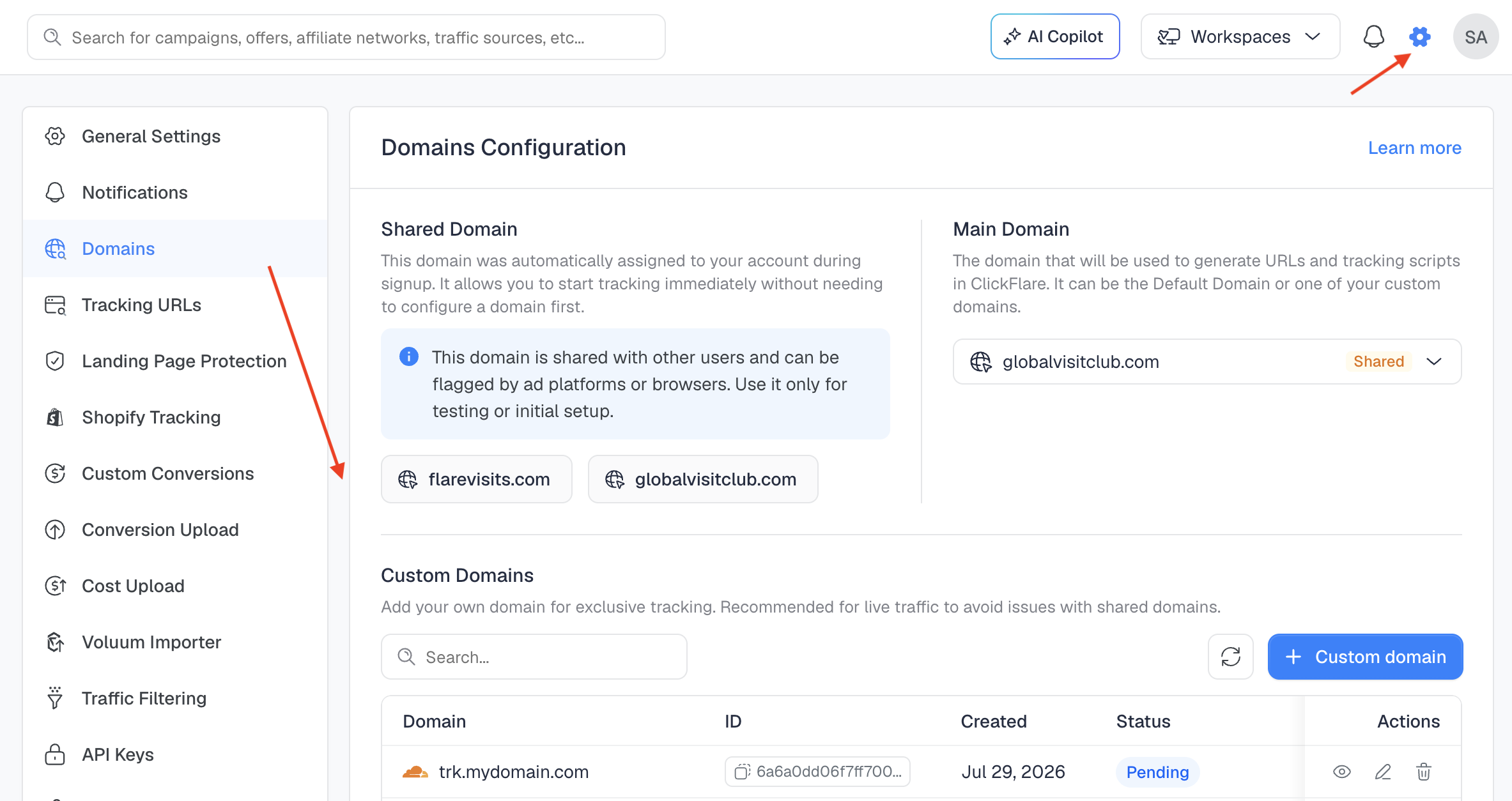
- Go to Settings > Domains and click Custom domain.
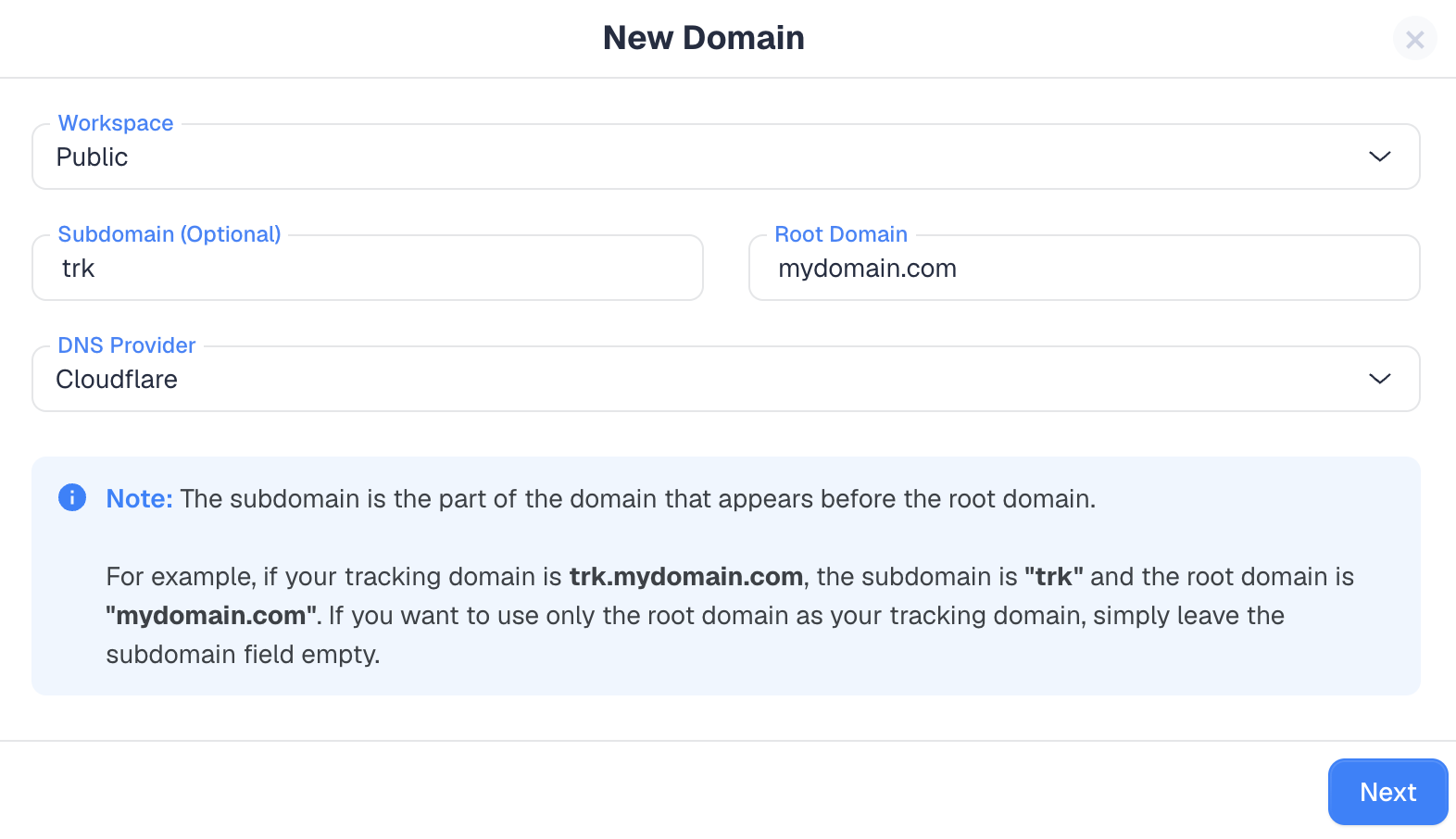
- Fill in the New Domain form:
- Workspace: choose the workspace this domain belongs to.
- Subdomain (Optional): the part before your root domain (for example, "trk" in trk.mydomain.com). Leave this empty if you want to use only the root domain as your tracking domain.
- Root Domain: your domain (for example, mydomain.com).
- DNS Provider: select your provider from the dropdown (CloudFlare, NameCheap, GoDaddy, etc).
- Click Next.
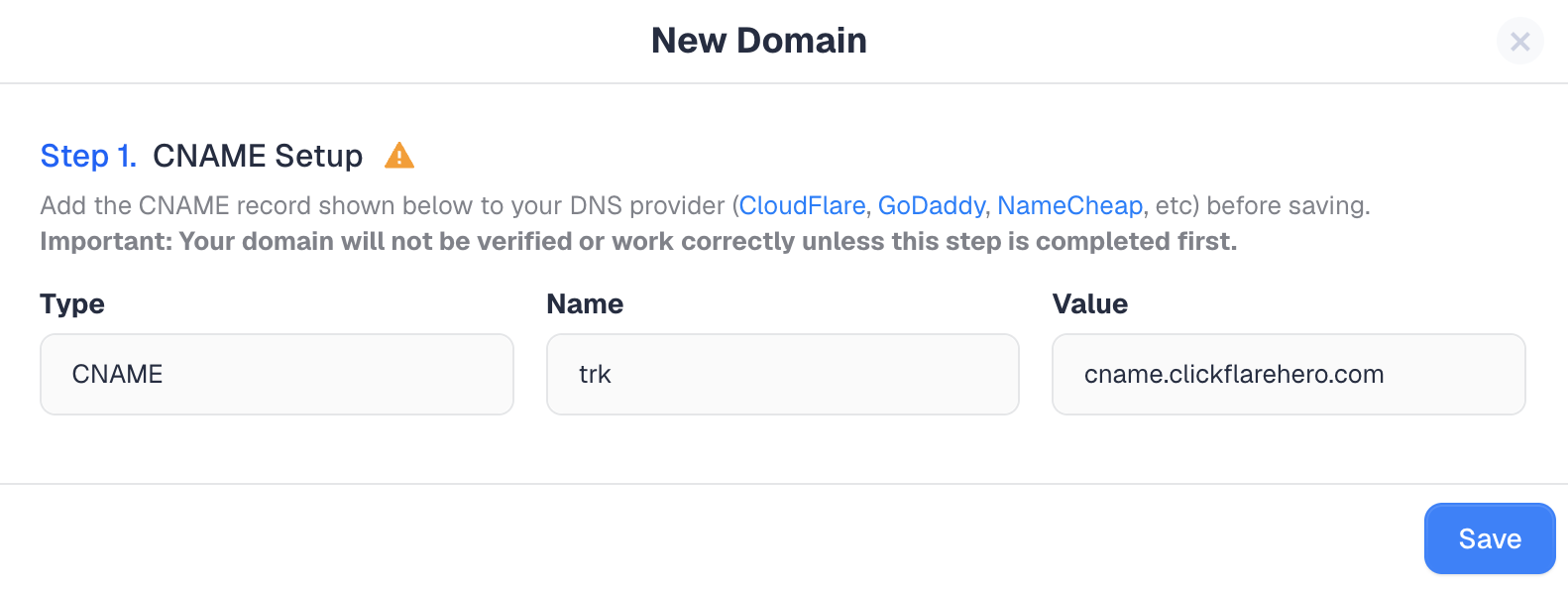
- You'll now see Step 1: CNAME Setup, with the exact Type, Name, and Value to use.
- Go to your DNS provider and add this single CNAME record using those exact values.
- Back in ClickFlare, click Save.
Your new domain will appear in the Custom Domains list with a Pending status while the DNS change propagates and SSL is issued. Once that's complete, the status will update to show your domain is active and ready to use.
Note: DNS propagation time varies by provider. It can take anywhere from a few minutes up to an hour.
Do I need to do anything for domains I already set up?
No. Domains added before this change keep working exactly as they were configured, with their existing CNAME and TXT records. There's nothing to migrate or re-verify.
FREQUENTLY ASKED QUESTIONS
- Do I still need to add a TXT record for domain verification? No. For domains added through this new process, the CNAME record alone handles verification. You don't need to create any TXT records.
- Do I need to request an SSL certificate separately? No. SSL is issued automatically once the CNAME record is detected. There's no separate SSL verification step to complete.
- I already have a custom domain set up with TXT records. Should I remove them? No. Existing domains keep working as configured. There's no need to change or remove anything on your end.
- How long does it take for my domain to go from Pending to Active? It depends on DNS propagation time with your provider. This can range from a few minutes to a few hours, and in some cases up to 48 hours.
- My domain has been Pending for a while. What should I check? Confirm the CNAME record at your DNS provider exactly matches the Name and Value shown in ClickFlare, including no typos or extra characters. If it still doesn't verify after a reasonable wait, reach out to support.
- Does this new process apply to both subdomains and root domains? Yes. Whether you're using a subdomain (like trk.mydomain.com) or just the root domain, only a single CNAME record is required.
- Which DNS providers does this work with? Any provider you can add a CNAME record with, including Cloudflare, GoDaddy, and NameCheap, and others.
